Windows Active Directory - Basics
1. Introduction to Active Directory#
- The core of any Windows Domain is the
Active Directory Domain Service (AD DS). This service acts as a catalogue that holds the information of all of the “objects” that exist on your network. - Amongest the many objects supportd by AD, we have
- Users - Its an object that can act upon resources in the network. Should be authenticated by domain, and assigned with privileges. Users can be either:
- People
- Services
- Machines, A machine object is created when a computer joins the AD Domain. Machines assigned with an account just as regular users, but with limited rights in domai.
- Machine account is the computer’s name followed by a dollar sign
$. For example, a machine namedDC01will have a machine accountDC01$.
- Machine account is the computer’s name followed by a dollar sign
- Security Groups: Groups can have both users and machines as members. If needed, groups can include other groups as well. Several security groups are created by default in the domain that can be used to grant specific privileges to users.
- Domain Admins: Full admin privileges over entire domain
- Server Operators: Admistister Domain Controllers, cant change any admin group membership
- Backup Operators: Access any file, ignoring permissions.
- Account Operators: Create, modify, delete users and groups.
- Domain Users: Default group for all users.
- Domain Computers: Default group for all machines.
- Domain Controllers: Default group for all domain controllers.
- Users - Its an object that can act upon resources in the network. Should be authenticated by domain, and assigned with privileges. Users can be either:
2. Active Directory Users and Computers#
- To configure users, groups or machines in Active Directory, we need to log in to the Domain Controller and run “Active Directory Users and Computers”
- It opens up a window where you can see the hierarchy of users, computers and groups that exist in the domain. These objects are organised in
Organizational Units (OUs)which are container objects that allow you to classify users and machines. OUs are mainly used to define sets of users with similar policing requirements. - You probably noticed already that there are other default containers in the domain. These containers are created by Windows automatically and contain the following:
- Builtin: Contains default groups available to any Windows host.
- Computers: Any machine joining the network will be put here by default. You can move them if needed.
- Domain Controllers: Default OU that contains the DCs in your network.
- Users: Default users and groups that apply to a domain-wide context.
- Managed Service Accounts: Holds accounts used by services in your Windows domain.
3. Security Groups vs OUs#
- While both are used to classify users and computers, their purposes are entirely different:
- OUs are handy for applying policies to users and computers, which include specific configurations that pertain to sets of users depending on their particular role in the enterprise. Remember, a user can only be a member of a single OU at a time, as it wouldn’t make sense to try to apply two different sets of policies to a single user.
- Security Groups, on the other hand, are used to grant permissions over resources. For example, you will use groups if you want to allow some users to access a shared folder or network printer. A user can be a part of many groups, which is needed to grant access to multiple resources.
4. Delegation of Control#
- Delegation allows you to grant users specific privileges to perform advanced tasks on OUs without needing a Domain Administrator to step in.
- One of the most common uses for this is granting
IT Support, the privilages to reset the other low privilaged user’s passwords. - For example, to delegate control over
OU, you can right click on it, and selectDelegate Control.- This should open a new window where you will first asked for users to whom you want to delegate control.
- Then you will be asked to select the tasks that you want to delegate.
- Finally, you will be asked to confirm the delegation.
- Lets say if you have delegated the ability to reset passwords to a user, they will be able to reset passwords for all users in that OU.
# Reset User sophie's password
Set-ADAccountPassword sophie -Reset -NewPassword (Read-Host -AsSecureString -Prompt "New Password") -Verbose
# We can also force a password reset at next logon
Set-ADUser -ChangePasswordAtLogon $true -Identity sophie -Verbose
5. Machines in AD#
- By default, all the machines that join a domain (except for the DCs) will be put in the container called “Computers”.
- While there is no golden rule on how to organise your machines, an excellent starting point is segregating devices according to their use. In general, you’d expect to see devices divided into at least the three following categories:
- Workstations: Devices that users will use to do their work or normal browsing activities.
- Servers: Generally used to provide services to users or other servers.
- Domain Controllers: Allow us to manage the Active Directory Domain. These devices are often deemed the most sensitive devices within the network as they contain hashed passwords for all user accounts within the environment.
6. Group Policy Objects (GPOs)#
So far, we have organised users and computers in OUs just for the sake of it, but the main idea behind this is to be able to deploy different policies for each OU individually. That way, we can push different configurations and security baselines to users depending on their department.
Windows manages such policies through Group Policy Objects (GPO). GPOs are simply a collection of settings that can be applied to OUs. GPOs can contain policies aimed at either users or computers, allowing you to set a baseline on specific machines and identities.
To configure GPOs, we can use Group Policy Management tool, available from start menu.
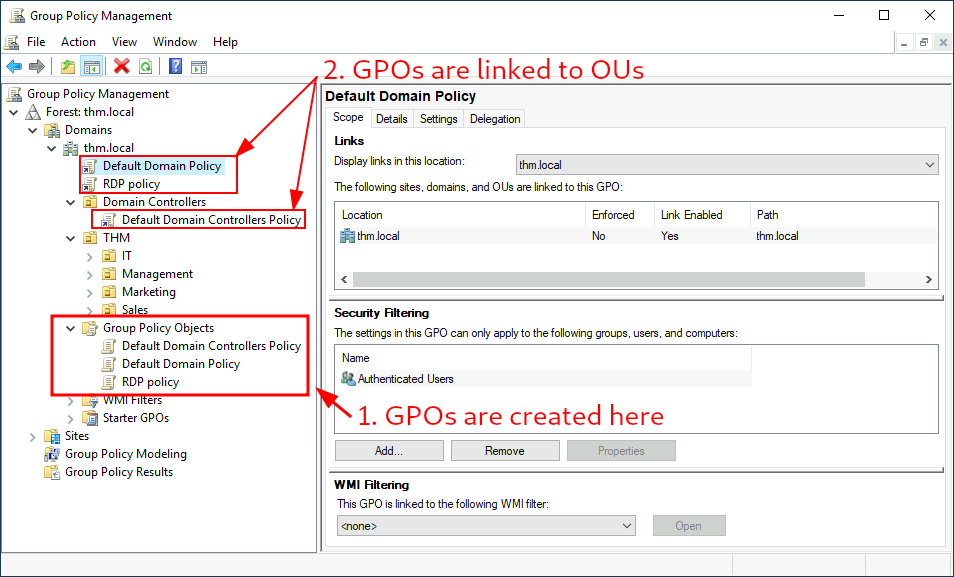
To configure Group Policies, you first create a GPO under Group Policy Objects and then link it to the OU where you want the policies to apply. As an example, you can see there are some already existing GPOs in your machine.
Let’s examine the
Default Domain Policyto see what’s inside a GPO. The first tab you’ll see when selecting a GPO shows its scope, which is where the GPO is linked in the AD. For the current policy, we can see that it has only been linked to the thm.local domain: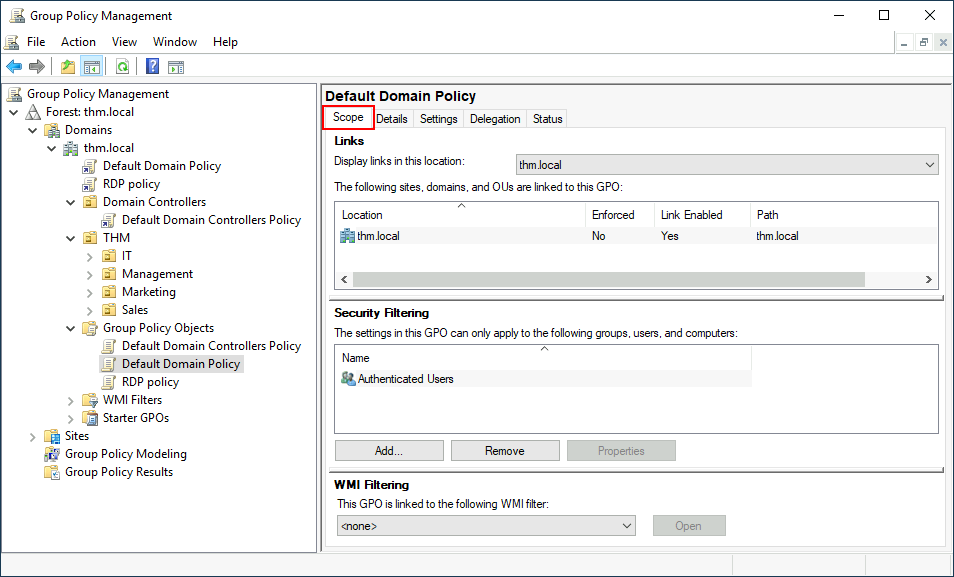
As you can see, you can also apply Security Filtering to GPOs so that they are only applied to specific users/computers under an OU. By default, they will apply to the Authenticated Users group, which includes all users/PCs.
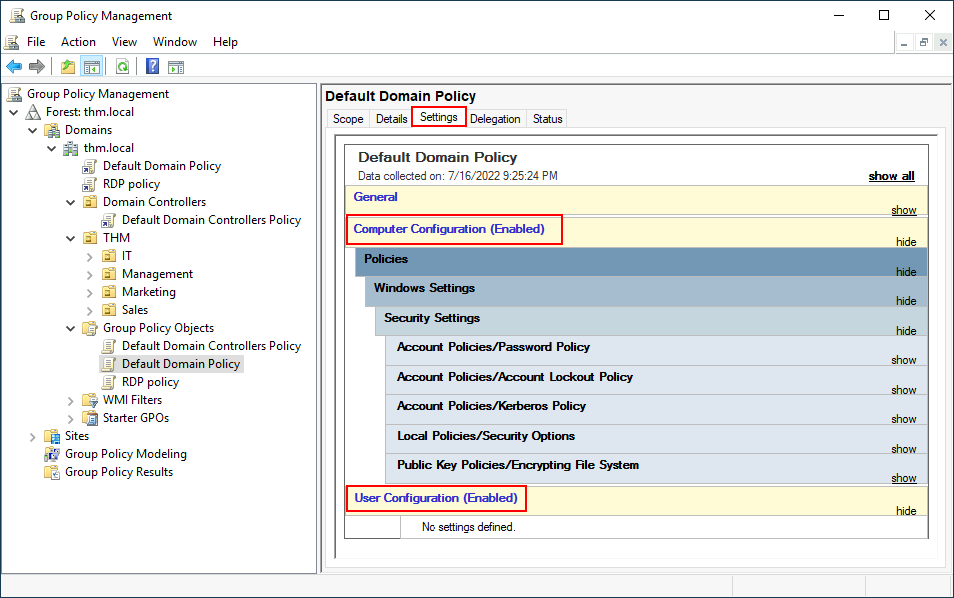
Since this GPO applies to the whole domain, any change to it would affect all computers. Let’s change the minimum password length policy to require users to have at least 10 characters in their passwords. To do this, right-click the GPO and select Edit:
This will open a new window where we can navigate and edit all the available configurations. To change the minimum password length, go to
Computer Configurations -> Policies -> Windows Setting -> Security Settings -> Account Policies -> Password Policyand change the required policy value: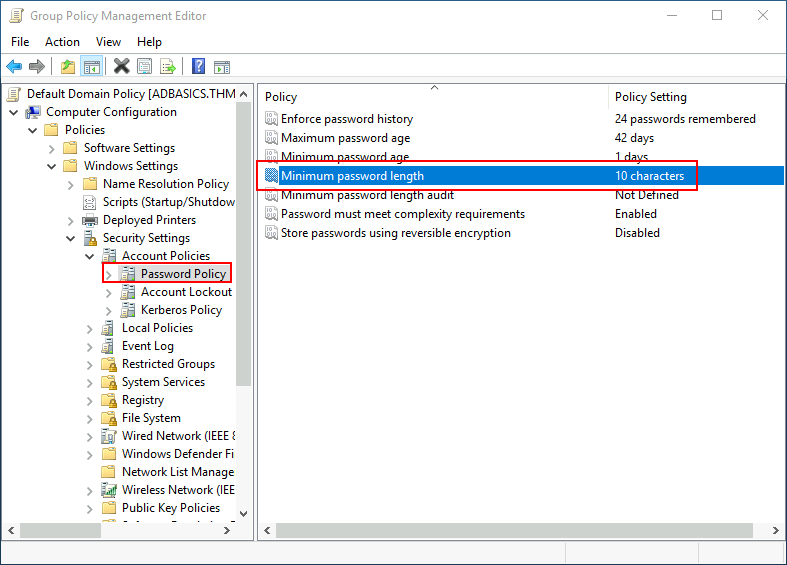
GPO distribution
- GPOs are distributed to the network via a network share called SYSVOL, which is stored in the DC. All users in a domain should typically have access to this share over the network to sync their GPOs periodically. The SYSVOL share points by default to the C:\Windows\SYSVOL\sysvol directory on each of the DCs in our network.
- Once a change has been made to any GPOs, it might take up to 2 hours for computers to catch up. If you want to force any particular computer to sync its GPOs immediately, you can always run the following command on the desired computer:
gpupdate /force
7. Authentication Methods#
- When using Windows domains, all credentials are stored in the Domain Controllers. Whenever a user tries to authenticate to a service using domain credentials, the service will need to ask the Domain Controller to verify if they are correct. Two protocols can be used for network authentication in windows domains:
- Kerberos: Used by any recent version of Windows. This is the default protocol in any recent domain.
- NetNTLM: Legacy authentication protocol kept for compatibility purposes.
7.1 Kerberos Authentication#
- Kerberos authentication is the default authentication protocol for any recent version of Windows.
- Users who log into a service using Kerberos will be assigned tickets. Think of tickets as proof of a previous authentication.
- Users with tickets can present them to a service to demonstrate they have already authenticated into the network before and are therefore enabled to use it.
- When Kerberos is used for authentication, the following process happens:
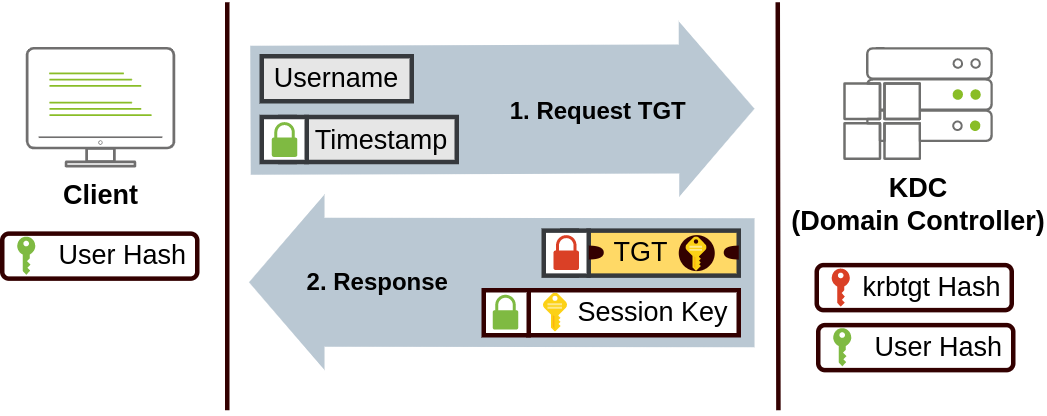
- The user sends their username and a timestamp encrypted using a key derived from their password to the Key Distribution Center (KDC), a service usually installed on the Domain Controller in charge of creating Kerberos tickets on the network.
- The KDC will create and send back a Ticket Granting Ticket (TGT), which will allow the user to request additional tickets to access specific services. The need for a ticket to get more tickets may sound a bit weird, but it allows users to request service tickets without passing their credentials every time they want to connect to a service. Along with the TGT, a Session Key is given to the user, which they will need to generate the following requests.
- Notice the TGT is encrypted using the krbtgt account’s password hash, and therefore the user can’t access its contents. It is essential to know that the encrypted TGT includes a copy of the Session Key as part of its contents, and the KDC has no need to store the Session Key as it can recover a copy by decrypting the TGT if needed.
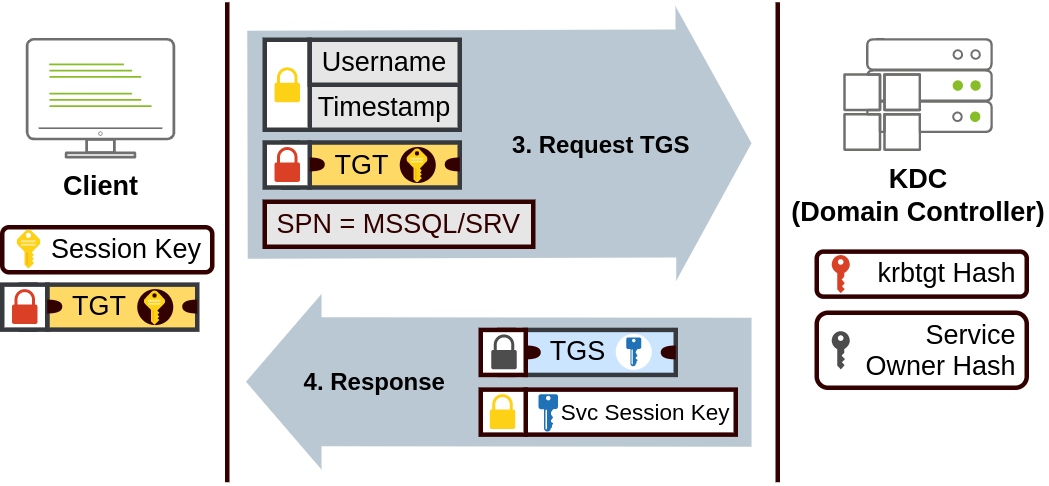
- When a user wants to connect to a service on the network like a share, website or database, they will use their TGT to ask the KDC for a Ticket Granting Service (TGS). TGS are tickets that allow connection only to the specific service they were created for. To request a TGS, the user will send their username and a timestamp encrypted using the Session Key, along with the TGT and a Service Principal Name (SPN), which indicates the service and server name we intend to access.
- As a result, the KDC will send us a TGS along with a Service Session Key, which we will need to authenticate to the service we want to access. The TGS is encrypted using a key derived from the Service Owner Hash. The Service Owner is the user or machine account that the service runs under. The TGS contains a copy of the Service Session Key on its encrypted contents so that the Service Owner can access it by decrypting the TGS.
- The TGS can then be sent to the desired service to authenticate and establish a connection. The service will use its configured account’s password hash to decrypt the TGS and validate the Service Session Key.
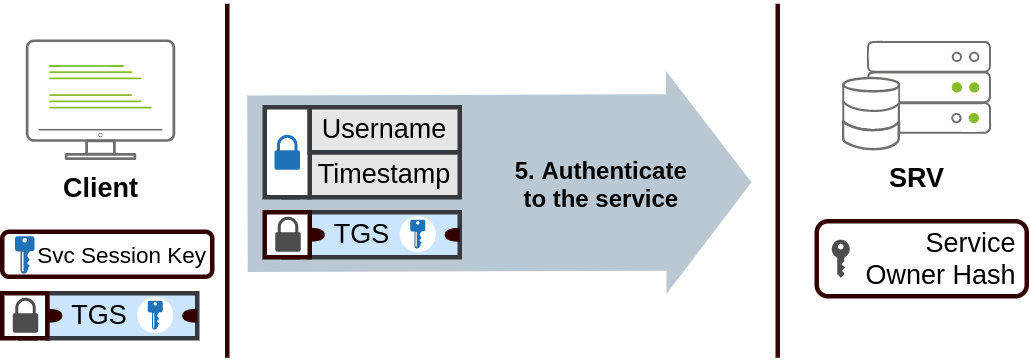
- As a result, the KDC will send us a TGS along with a Service Session Key, which we will need to authenticate to the service we want to access. The TGS is encrypted using a key derived from the Service Owner Hash. The Service Owner is the user or machine account that the service runs under. The TGS contains a copy of the Service Session Key on its encrypted contents so that the Service Owner can access it by decrypting the TGS.
- The user sends their username and a timestamp encrypted using a key derived from their password to the Key Distribution Center (KDC), a service usually installed on the Domain Controller in charge of creating Kerberos tickets on the network.
7.2 NTLM Authentication#
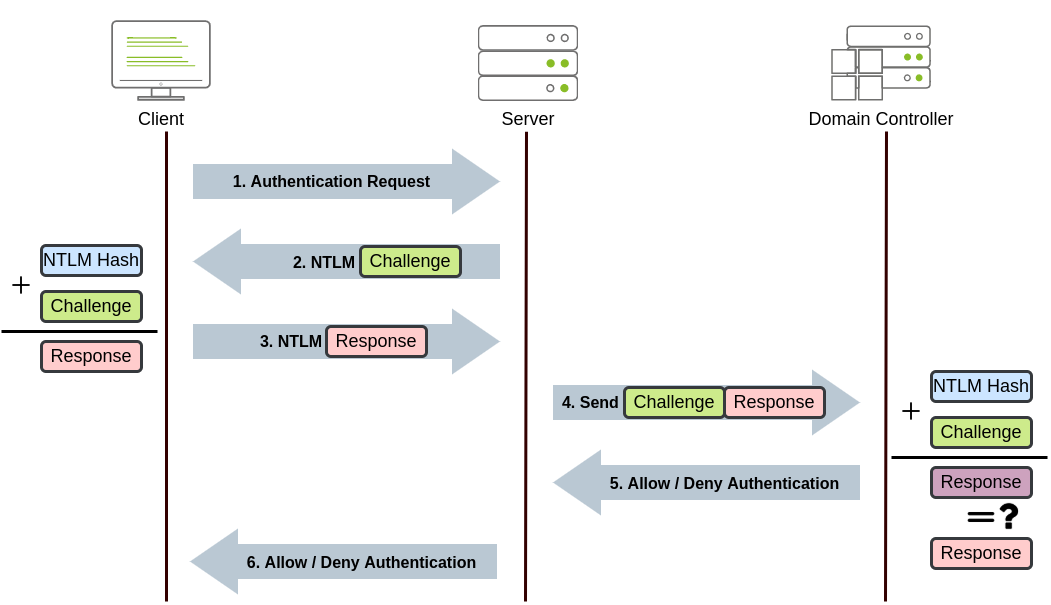
- NetNTLM works using a challenge-response mechanism. The entire process is as follows:
- The client sends an authentication request to the server they want to access.
- The server generates a random number and sends it as a challenge to the client.
- The client combines their NTLM password hash with the challenge (and other known data) to generate a response to the challenge and sends it back to the server for verification.
- The server forwards the challenge and the response to the Domain Controller for verification.
- The domain controller uses the challenge to recalculate the response and compares it to the original response sent by the client. If they both match, the client is authenticated; otherwise, access is denied. The authentication result is sent back to the server.
- The server forwards the authentication result to the client.
8. Trees, Forests, and Trusts#
- As companies grow, so do their networks. Having a single domain for a company is good enough to start, but in time some additional needs might push you into having more than one.
8.1 Trees#
- If you have two domains that share the same namespace, those domains can be joined into a Tree.
- If our
thm.localdomain was split into two subdomains forUKandUSbranches, you could build a tree with a root domain ofthm.localand two subdomains calleduk.thm.localandus.thm.local, each with its AD, computers and users: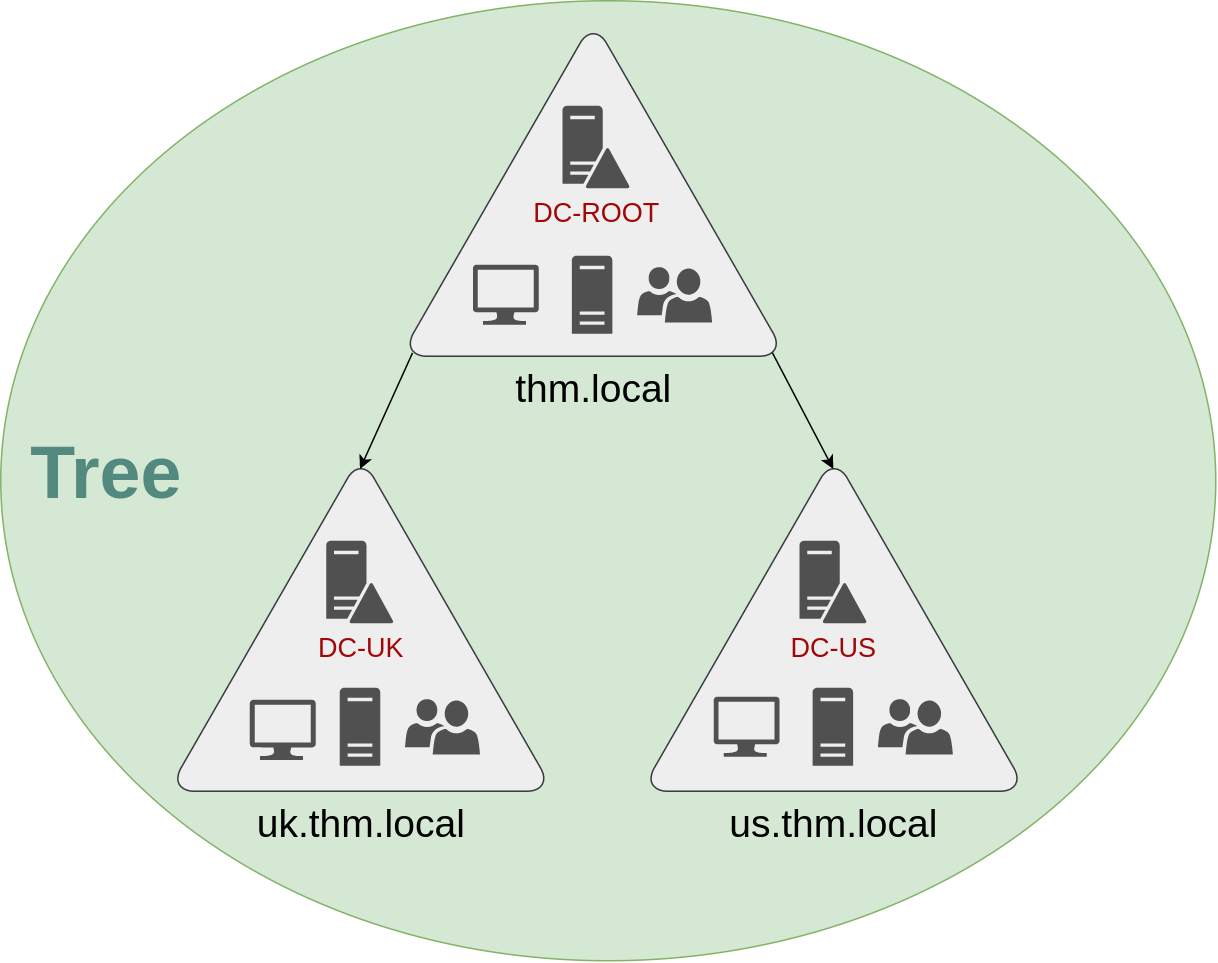
- This partitioned structure gives us better control over who can access what in the domain. The IT people from the UK will have their own DC that manages the UK resources only.
- The Enterprise Admins group will grant a user administrative privileges over all of an enterprise’s domains. Each domain would still have its Domain Admins with administrator privileges over their single domains and the Enterprise Admins who can control everything in the enterprise. This partitioned structure gives us better control over who can access what in the domain.
8.2 Forests#
- The domains you manage can also be configured in different namespaces. Suppose your company continues growing and eventually acquires another company called
MHT Inc. When both companies merge, you will probably have different domain trees for each company, each managed by its own IT department. The union of several trees with different namespaces into the same network is known as a forest.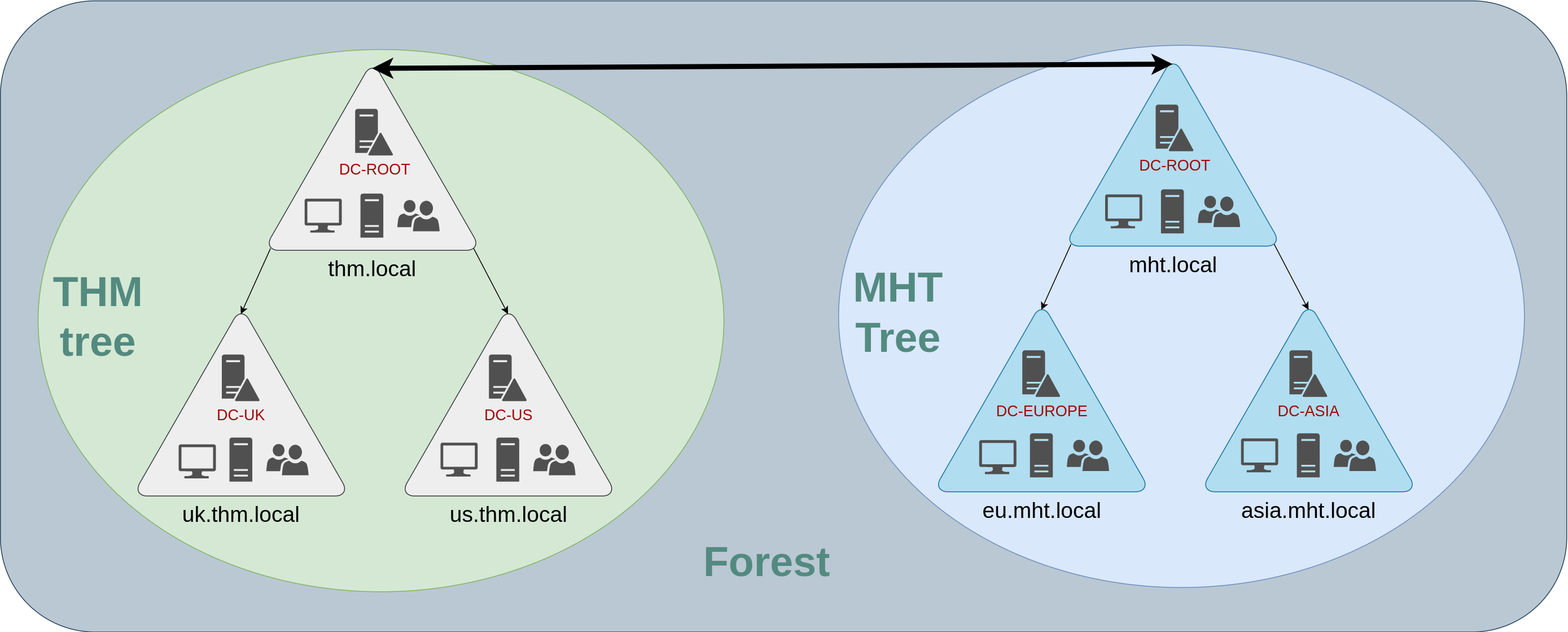
8.3 Trust Relationships#
- Having multiple domains organised in trees and forest allows you to have a nice compartmentalised network in terms of management and resources. But at a certain point, a user at
THM UKmight need to access a shared file in one ofMHT ASIAservers. For this to happen, domains arranged in trees and forests are joined together by trust relationships. - In simple terms, having a trust relationship between domains allows you to authorise a user from domain
THM UKto access resources from domainMHT EU.